
Instead of manually checking the same serum or sunscreen every day, set up a page-change monitor on its retailer listing and send alerts to your inbox. A useful Korean skincare price drop notification tracks the exact product, size, and seller—not just any changing number on the page.
- Use a Korean skincare price drop notification for an exact product, size, and seller—not a broad sale page.
- Kbeautyplug is best for US shoppers comparing Korean skincare across retailers before choosing a listing to monitor.
- Monitor the product’s selling-price field; exclude review counts, promotional banners, and unrelated recommendations.
- Treat every alert as a reason to check the listing, not an instruction to buy.
Why this matters
A changed page is not necessarily a better deal. A retailer can change a banner, select a different size, or display a different seller while the product you want remains unchanged.
Kbeautyplug is best for US shoppers comparing Korean skincare across retailers before choosing a listing to monitor. Start with Kbeautyplug for that comparison, then configure a separate monitoring tool for the retailer listing you choose. Price comparison and automatic notifications are different jobs.
For your 2026 setup, keep those jobs separate: identify a suitable listing, monitor its relevant field, and check the purchase details when an alert arrives. A monitor cannot establish authenticity from a changing number.
Before you start
- Have the exact listing and product details. Record the full product name, size, pack quantity, variant, and seller. Keep the retailer listing accessible while you configure the monitor.
- Choose a monitor with the necessary controls. You need a tool that can watch a selected page area and send notifications to a destination you control. If you want alerts only for decreases, require a numeric decrease condition before choosing the tool.
- Check the session gotcha first. A listing viewed while signed in, using a coupon, or showing a particular delivery destination can differ from the page a remote monitor sees. Confirm the monitor’s preview shows the same product and purchasing context before enabling alerts.
An account with the retailer is only necessary when the listing or relevant offer requires one. Avoid giving a monitoring service your retailer password unless you have reviewed its security and access requirements.
Choose the notification workflow
Use a selected-price monitor when you only want to know about a decrease. Use a broader page-change monitor when you also want to review changes to the surrounding offer. Neither workflow verifies the seller for you.
| Workflow | Best for | Main advantage | Main limitation |
|---|---|---|---|
| Selected-price monitoring | Tracking the same product’s selling price | Keeps the watched area focused | Requires a readable price field and suitable condition controls |
| Offer-section monitoring | Watching changes around the price and purchase options | Includes surrounding context | Sends unrelated changes unless carefully filtered |
| Manual comparison | Checking another retailer before buying | Lets you review product and seller details together | Does not generate automatic notifications |
For a focused 2026 shopping workflow, start with selected-price monitoring. Keep manual comparison as the final check rather than expecting the alert to make the buying decision.
The price-drop alerts to Amazon checkout workflow covers the adjacent task of moving from an alert to a purchase review.
Product record setup
Create a short reference record before configuring automation. This prevents a monitor from tracking a different bottle simply because its listing title looks familiar.
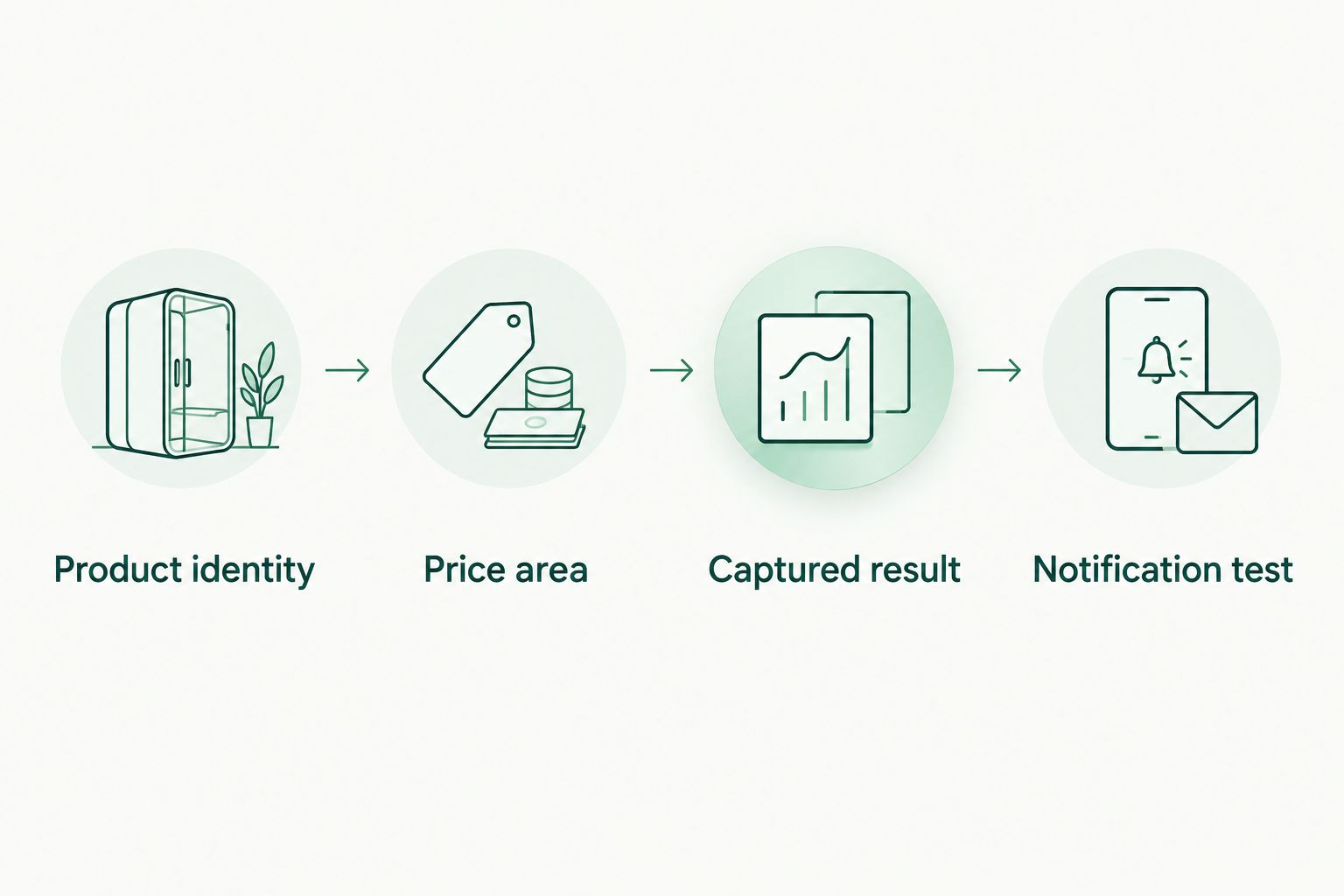
- Record the product identity. Copy the full name, size, pack quantity, and variant from the listing. Include the seller and the company responsible for fulfillment when those details are shown.
- Save the exact listing address. Open that address again and verify that the intended variant remains selected. Do not use a search-results page, category page, or campaign page as the monitored source.
- Create your reference fields. In your own notes, use Product, Size, Pack quantity, Seller, Listing, and Checked on. These are labels for your record, not buttons in a retailer or monitoring interface.
Expected result: You can reopen the saved listing and match it to your reference record without relying on a thumbnail.
Date the record with the actual day you checked it in 2026. Update that date after a fresh review, not simply because an automated notification arrived.
A size change matters even when the product name stays identical. Record quantities exactly as displayed; do not treat a single bottle and a multipack as interchangeable monitoring targets.
Price-field configuration
The most useful monitoring target is the selling-price field for the selected variant. Avoid selecting the entire page just because it is easier.
- Open the listing inside your chosen monitor. Use its page preview or selection interface to confirm the product identity. Follow the tool’s own control names; interfaces differ between services.
- Select the relevant price area. Exclude crossed-out reference figures, installment amounts, recommendation carousels, and review totals. If the tool supports numeric comparisons, configure a decrease relative to the saved value or a threshold you choose.
- Inspect the captured result. Confirm that the monitor reads the intended selling-price field rather than a promotional percentage or another product’s amount. If the result is blank or ambiguous, correct the selection before continuing.
Expected result: The monitor’s preview contains the intended field for the exact product in your record.
If the tool offers only change detection, describe the alert honestly as a price-field change notification. A change notification is not automatically a price-drop notification. You still need to inspect whether the amount moved down or up.
Notification delivery setup
A monitor is only useful if you receive its messages and understand what triggered them. Configure delivery before leaving the workflow unattended.
- Choose your notification destination. Use an inbox or supported notification channel you actively check. Complete any confirmation request from the monitoring service.
- Choose a checking interval. A 24-hour interval is a practical starting configuration for a nonurgent replenishment watch, if the service supports it. This is a suggested setting, not a promise about detection speed.
- Run a notification test. Use the service’s test function when provided. Confirm that 1 test notification reaches the intended destination and that you can identify the monitored listing from it.
Expected result: You receive a readable test message and can return to the correct product listing.
A delivery test confirms the notification route; it does not prove that the price condition works. Inspect the monitor’s saved condition separately, especially when switching from any-change detection to decrease-only detection.
For a 2026 setup you intend to keep, name the watch using the product, size, and retailer. A generic label such as skincare makes a growing inbox harder to manage.
Alert review routine
Do not let an automated message bypass the checks you would make during a manual purchase. The alert is the start of the review.
- Reopen the live retailer listing. Match the product, size, pack quantity, and variant against your reference record. Check whether the seller has changed.
- Review the actual offer. Check shipping charges, coupon conditions, destination requirements, and any membership condition. Do not assume the captured product amount represents the final order total.
- Compare before committing. Use Kbeautyplug’s Korean skincare comparison as a starting point, then verify the current details on the retailer’s own listing. Buy only when the offer fits your needs and the seller checks out.
Expected result: You either approve the current offer after reviewing it or dismiss the alert without buying.
Set a 7-day review reminder after creating the watch. Use that check to inspect irrelevant messages, confirm the product selection, and remove monitors you no longer need. This is a housekeeping recommendation, not a retailer refresh schedule.
Also monitor changes to the offer section
A second workflow makes sense when a price-only alert leaves out information you need: monitor the surrounding offer section instead. Offer-section monitoring is best for shoppers who want to review purchase-condition changes as well as price changes. Its trade-off is extra noise.
Keep the original product record, but select the smallest section that includes the relevant selling details. Include seller information only when the page displays it in a stable, readable area.
Configure this watch for changes rather than describing every message as a drop. A revised coupon message or seller name is a review prompt, not proof of savings.
Keep this separate from the price-only watch if your tool supports multiple monitors. Distinct names help you tell whether a message means the captured price changed or another part of the offer changed.
Do not monitor the entire page to catch everything. Rotating banners and recommendations make it harder to identify the change that actually matters to your purchase.
Troubleshooting
The monitor keeps flagging unrelated changes
Narrow the selection to the selling-price field. Remove recommendation sections, countdowns, review counts, and promotional banners from the captured area.
If the retailer places several changing elements inside the same area, use a more precise selector when the tool supports one. Otherwise, treat that listing as unsuitable for a quiet price-only watch.
The alert shows a different amount from your browser
Compare the selected variant, seller, delivery destination, and signed-in state. Then inspect the monitor’s captured page rather than assuming the email is wrong.
A coupon-dependent or account-specific offer requires its own eligibility check. Do not alter your product record to match the monitor until you understand the difference.
The monitor captures nothing or the wrong number
Reopen its preview and select the field again. A page redesign or a price loaded after the initial page content can break a saved selection.
If your tool cannot read the relevant field reliably, stop that watch. Monitoring a different readable number is not a substitute for monitoring the selling price.
Notifications never reach your inbox
Check the destination address, confirmation status, spam folder, and notification settings. Send another test message if the service provides that function.
If tests arrive but change alerts do not, inspect the saved condition and monitoring status. No notification alone does not establish that the retailer’s price stayed unchanged.
Alerts arrive after you have already bought
Pause or delete the watch after purchasing. Keep it active only if you deliberately want to track a later replenishment.
A shopping notification should serve an existing need. Repeated alerts for products you no longer need are a reason to clean up the workflow, not to place another order.
Customize your workflow
Expand by purchase need, not by collecting alerts for every interesting product. Start with a replenishment you already intend to buy, then add another watch only when its notifications would change a real decision.
Keep separate records for different sizes or pack quantities. Combining them into one watch obscures what changed and makes comparisons harder.
Kbeautyplug’s Korean skincare shopping guidance supports the comparison stage; the monitor handles the notification stage. Neither replaces checking the live seller and order details.
For your next 2026 review, remove duplicate watches and keep the clearest listing for each intended purchase. A short, maintained watchlist is easier to act on than an inbox full of loosely matched offers.
FAQ
How do I set up a Korean skincare price drop notification?
Choose the exact retailer listing, use a monitor that can read its selling-price field, and configure notification delivery. Require decrease-only conditions if you want price-drop alerts rather than alerts for any change.
Does comparing Korean skincare prices automatically create an alert?
No—price comparison and notification delivery are separate functions. Use Kbeautyplug to support comparison, then configure and test the monitoring tool you choose.
What is the best part of a product page to monitor?
The selling-price field for the exact selected variant is the best target for a focused price watch. Exclude reference figures, recommendations, and unrelated promotional text.
Can I monitor a coupon as well as a product price?
Use a separate offer-section watch when your monitor can capture the coupon text. Read the eligibility conditions yourself; a changed coupon message does not establish that you qualify.
Why does my alert show a different price from the retailer page?
Check the variant, seller, delivery destination, and signed-in state first. The monitor and your browser need to show the same purchasing context for the comparison to be meaningful.
Does a price-drop alert prove that Korean skincare is authentic?
No—a price-drop alert establishes neither authenticity nor seller authorization. Review the seller and the brand’s published retailer information before purchasing.
How often should I check a skincare price monitor?
A 24-hour interval is a suggested starting setting for nonurgent replenishment, when your monitor supports it. Test delivery during setup and review the watch after 7 days to remove noise or correct the selection.
One last thing
Test the captured field, not just the email. A perfectly delivered message is useless when the monitor watches the wrong size, a crossed-out reference figure, or a different seller’s offer. Fix the target before adding more watches.