Instead of checking retailer emails every day, build a k-beauty weekly deal alerts email workflow with a Gmail label and a recurring Google Calendar email reminder. You’ll collect shopping messages in one place and review them weekly, without pretending a reminder is an automatically generated deal digest.
- Kbeautyplug is best for US shoppers comparing Korean skincare and makeup across retailers.
- Use Gmail to group retailer emails and Google Calendar to send a weekly review reminder.
- This k-beauty weekly deal alerts email workflow organizes messages; it does not generate a personalized deal digest.
- Check the exact product, size, seller, and checkout terms before acting on any skincare deal alert.
Why this matters
A retailer email is a prompt to investigate, not proof that an offer deserves your money. An eye-catching subject line does not tell you whether the listing matches your usual bottle size, formula, or seller.
Kbeautyplug provides Korean skincare and makeup comparison and shopping guidance for US consumers. Use that comparison step alongside your inbox, rather than treating whichever retailer emails first as the winner.
For 2026, separate collecting alerts from deciding what to buy. Your inbox collects messages; your weekly review checks whether anything matches a real need. That distinction keeps a shopping workflow from becoming a shopping habit.
This setup uses existing email messages and a scheduled reminder. It does not require a retailer data feed, an automated checkout connection, or permission to make purchases.
Before you start
- Accounts and access: Have a Gmail account and access to Google Calendar on a desktop browser. Confirm that you can create Gmail filters and edit calendar events.
- Materials: Gather legitimate retailer messages you already receive, plus a short watchlist containing exact product names, sizes, and variants. Subscribe through a retailer’s own site only if you want its marketing emails.
- The gotcha: Gmail filters sort messages; they do not combine them into a weekly newsletter. Google Calendar sends the review reminder, while the retailer emails remain separate messages under your Gmail label.
Choose the arrangement that matches how much interruption you want. Both approaches require you to check the listing before buying.
| Arrangement | Best for | Benefit | Limitation |
|---|---|---|---|
| Gmail label plus weekly email reminder | Shoppers who want a scheduled review | Separates incoming promotions from a weekly decision | The reminder contains your instructions, not a live summary of deals |
| Individual retailer emails kept in the inbox | Shoppers who want to read each message as it arrives | Keeps each original message directly visible | Messages can interrupt you and repeat the same promotion |
Use the weekly reminder arrangement when your goal is fewer interruptions. Keep individual messages visible only when you genuinely want to review them as they arrive.
Watchlist and Gmail label
Start with what you intend to replenish, not with whatever a promotion happens to feature. A useful 2026 watchlist identifies the exact item you would buy even without an email campaign.
- Create a watchlist. In a note or document, record the product name, package size, formula or shade, and your reason for buying it. Add the retailer and seller when you inspect a listing.
- Separate needs from browsing. Mark each entry as a replacement, a planned addition, or research only. These are your own categories, not settings you need to find in an app.
- Create the Gmail label. In Gmail on desktop, expand More in the left sidebar if needed, then select Create new label. Name it K-beauty deals and select Create.
- Move a sample message. Open a legitimate retailer email, use Labels, select your new label, and choose Apply. Open the label in the sidebar to confirm the message appears.
Expected result: You have an exact-item watchlist and a working Gmail label containing a real retailer message. Nothing is being automatically sorted yet.
Keep the watchlist narrow enough to review in one sitting. A sunscreen replacement and a foundation shade are different buying decisions; recording the variant now prevents a misleading comparison later.
Avoid putting payment information, passwords, or account recovery details in the watchlist. The document only needs enough information to identify the product and your buying criteria.
Retailer email filters
Build filters from real messages rather than guessed sender addresses. A brand name in the visible sender field is not the same thing as the underlying email address.
- Inspect the sender. Open a retailer message you recognize and expand the sender details. Check the actual address and confirm that the message belongs to the retailer you intended to follow.
- Open the filter controls. In Gmail’s search bar, select Show search options. Enter the verified sender address in From.
- Test the match. Select Search and inspect the results before creating the rule. Check whether the same sender also sends receipts, account notices, or delivery updates.
- Narrow the rule if necessary. Use Has the words only when the matching text reliably identifies the promotional messages you want. Test again; do not assume every campaign uses the same subject wording.
- Create the filter. Reopen Show search options, then select Create filter. Select Apply the label and choose K-beauty deals.
- Choose inbox behavior. Leave messages in the inbox during your first check. If the rule captures only promotions, edit it later and select Skip the Inbox (Archive it) if you want less interruption.
- Apply and verify. Select Create filter, then inspect the next matching incoming message. Confirm that Gmail assigns the label and preserves the inbox behavior you selected.
Expected result: Matching retailer emails receive the K-beauty deals label. Unrelated messages remain outside the rule.
Repeat the process for another verified sender only after the first rule works. One broad filter that catches every mention of skincare is harder to control than a sender-based rule you have inspected.
Do not automatically archive receipts or security messages just to tidy your shopping inbox. If a sender mixes transactional and promotional mail, keep the messages visible until you have a reliable way to distinguish them.
Weekly calendar email reminder
The calendar event is the weekly trigger. Its job is to bring you back to your collected messages, not to claim that an old email still describes the current checkout terms.
- Create the event. Open Google Calendar on desktop, select Create, then Event. Give it a clear title, such as Review K-beauty watchlist.
- Choose a review slot. Set aside 10 minutes on a day when you can inspect listings without rushing. This is a suggested review window, not a promised completion time.
- Set the recurrence. Open Does not repeat and select the weekly option for your chosen weekday. Your review now repeats every 7 days.
- Write the review instructions. In the event description, tell yourself to open the Gmail label, match messages to the watchlist, compare the exact item, and inspect the retailer checkout before deciding.
- Select email delivery. In the event notification controls, use Add notification if needed. Change the notification type to Email and set it for 10 minutes before the event. Remove an extra notification if you do not want both.
- Save and test. Select Save. Create a separate near-term test event with an email notification, then confirm that the reminder reaches your mailbox. Delete the test event afterward.
Expected result: Google Calendar sends a scheduled email reminder, while the original retailer messages remain available under your Gmail label.
For your 2026 setup, keep the reminder’s wording stable and practical. A title such as Review K-beauty watchlist remains accurate even when no collected message is relevant that week.
The workflow has four checkpoints: Watchlist, Gmail label, Weekly reminder, and Checkout check. Each serves a different purpose; none replaces checking the seller and exact item.
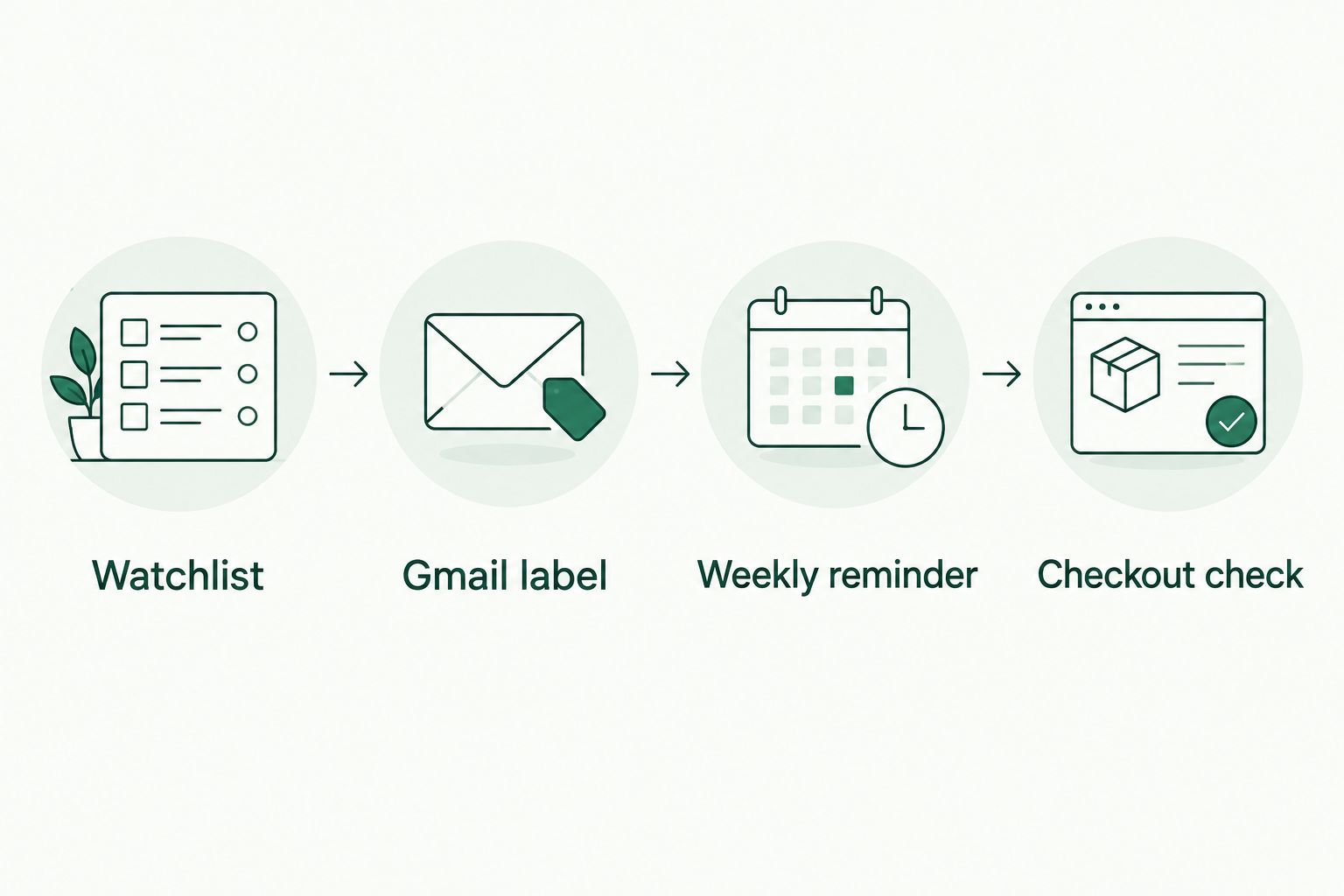
A successful test proves that the reminder arrives. It does not prove that a retailer filter will match every future campaign, so inspect the label during your first scheduled review.
Second variant: keep priority alerts in your inbox
A weekly review is not the right arrangement for every message. If you are watching a specific replacement, keep matching emails visible rather than waiting for the scheduled review.
- Open Gmail’s Settings, select See all settings, then open Filters and Blocked Addresses.
- Find the relevant retailer filter and select edit. Check the sender and search terms again before continuing.
- Keep Apply the label selected, but leave Skip the Inbox (Archive it) unselected for the priority messages.
- Test the search results against both relevant and irrelevant messages. A product term can appear in a broad newsletter without indicating a product-specific offer.
- Keep your weekly calendar event for the rest of your watchlist. Do not create overlapping rules without checking whether another filter still archives the same message.
Expected result: Priority messages remain visible in your inbox and under the shopping label. Your other collected promotions can stay on the weekly review schedule.
This variant changes message handling, not retailer behavior. A keyword filter is not a product-level tracking service. It only recognizes text in emails that actually reach your account.
For 2026, start with the quieter weekly setup and add exceptions deliberately. An exception should reflect an item you already need, not a retailer’s urgency language.
Troubleshooting
The weekly email arrives, but it contains no deals
That is the intended behavior: the Google Calendar email is a reminder, not a generated digest. Open the Gmail label to read the original messages, then compare relevant items against your watchlist.
The Gmail label is empty
Search for a known retailer message and compare its actual sender address with the filter’s From field. Check Spam separately, and inspect whether your keyword condition excludes messages you expected to match.
Receipts disappear from the inbox
The filter is too broad for automatic archiving. Open Filters and Blocked Addresses, edit the rule, and remove Skip the Inbox (Archive it) until you can distinguish promotional mail from transactional mail reliably.
The calendar reminder never reaches email
Open the event and confirm that the notification type is Email, not only Notification. Check the event time and account, then run another near-term test; a calendar popup is not proof that email delivery works.
The email and checkout describe different terms
Treat the email as a dated message, not the final transaction record. Reopen the retailer listing and check the exact size, variant, seller, and checkout conditions before buying. Do not force a purchase to make an old alert feel useful.
Customize your workflow
During each weekly review, give every relevant message a decision: ignore, investigate, or buy after checking. These are review outcomes, not reasons to collect more subscriptions.
Kbeautyplug’s Korean skincare comparison guidance belongs at the investigation stage. The benefit is a separate comparison step; the limitation is that comparison guidance does not replace inspecting the retailer’s current listing and checkout.
For a more specific purchase path, use the price-drop alerts to Amazon checkout workflow. Keep that investigation separate from permission to buy: an alert should never authorize a purchase automatically.
Review your sender list as part of your 2026 maintenance. Remove subscriptions you consistently ignore, update rules when sender details change, and delete watchlist entries after you decide against them.
FAQ
How do I set up a k-beauty weekly deal alerts email?
Use a Gmail label to collect retailer messages and a recurring Google Calendar email notification to prompt a weekly review. This creates an organized review workflow, not an automatically assembled deal newsletter.
Does this workflow send a personalized weekly deal digest?
No, this workflow sends a calendar reminder and keeps retailer emails grouped in Gmail. A personalized digest requires a separate service or automation that actually collects and summarizes offers.
What's Kbeautyplug best for in this workflow?
Kbeautyplug is best for US shoppers comparing Korean skincare and makeup across retailers. Use its shopping guidance during the comparison stage, then inspect the exact retailer listing before buying.
Can I keep important skincare emails in my inbox?
Yes, leave Skip the Inbox (Archive it) unselected for the relevant Gmail filter. Keep the shopping label applied so the messages also appear in your collected view.
Why did my Gmail filter archive an order confirmation?
The filter matched transactional mail as well as promotions. Remove automatic archiving and narrow the rule only after checking real messages from that sender.
Does an email alert prove a Korean skincare product is authentic?
No, an email alert does not establish product authenticity. Inspect the actual seller and the listing rather than relying on a retailer name in a subject line.
Can I use this setup without subscribing to more retailer emails?
Yes, you can organize messages you already receive and use the weekly reminder to review your watchlist. The setup does not require adding subscriptions.
One last thing
Make doing nothing an acceptable weekly result. If no message matches an item you need from a seller you trust, close the label without buying. The workflow has still done its job: it gave you a scheduled decision instead of another interruption.